

Opening the agent
There are three ways to start a conversation:Cmd+G— Opens the agent directly from anywhere in the app.- Command palette (
Cmd+K) — Open the palette and type a question. The agent takes over when your input looks like a question rather than a navigation command. - “Ask AI” chips — Contextual prompts appear throughout pages (product detail, inbox, interactions). Click one to open the agent with that question pre-loaded.
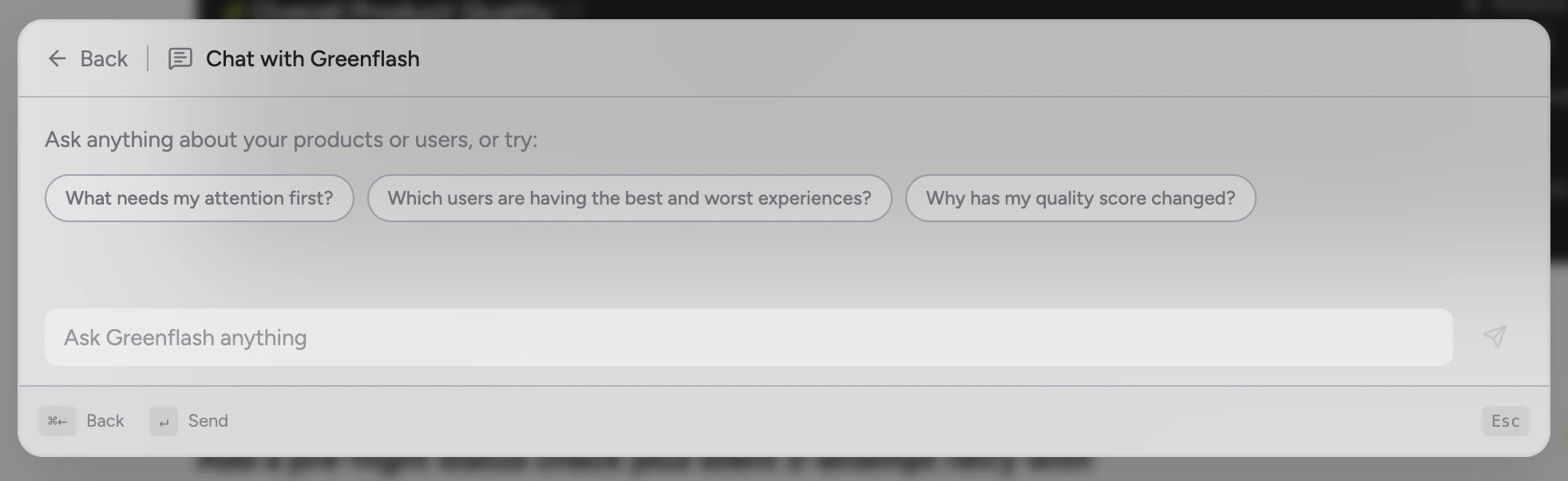
What you can ask
The agent handles a wide range of questions. Here are the categories that come up most:Product health
“How are my products doing?”Get PQI trends, sentiment shifts, frustration levels, hallucination rates, and topic breakdowns across all your products — or drill into one. Useful for daily check-ins or when something feels off and you’re not sure where to look.
Diagnostics
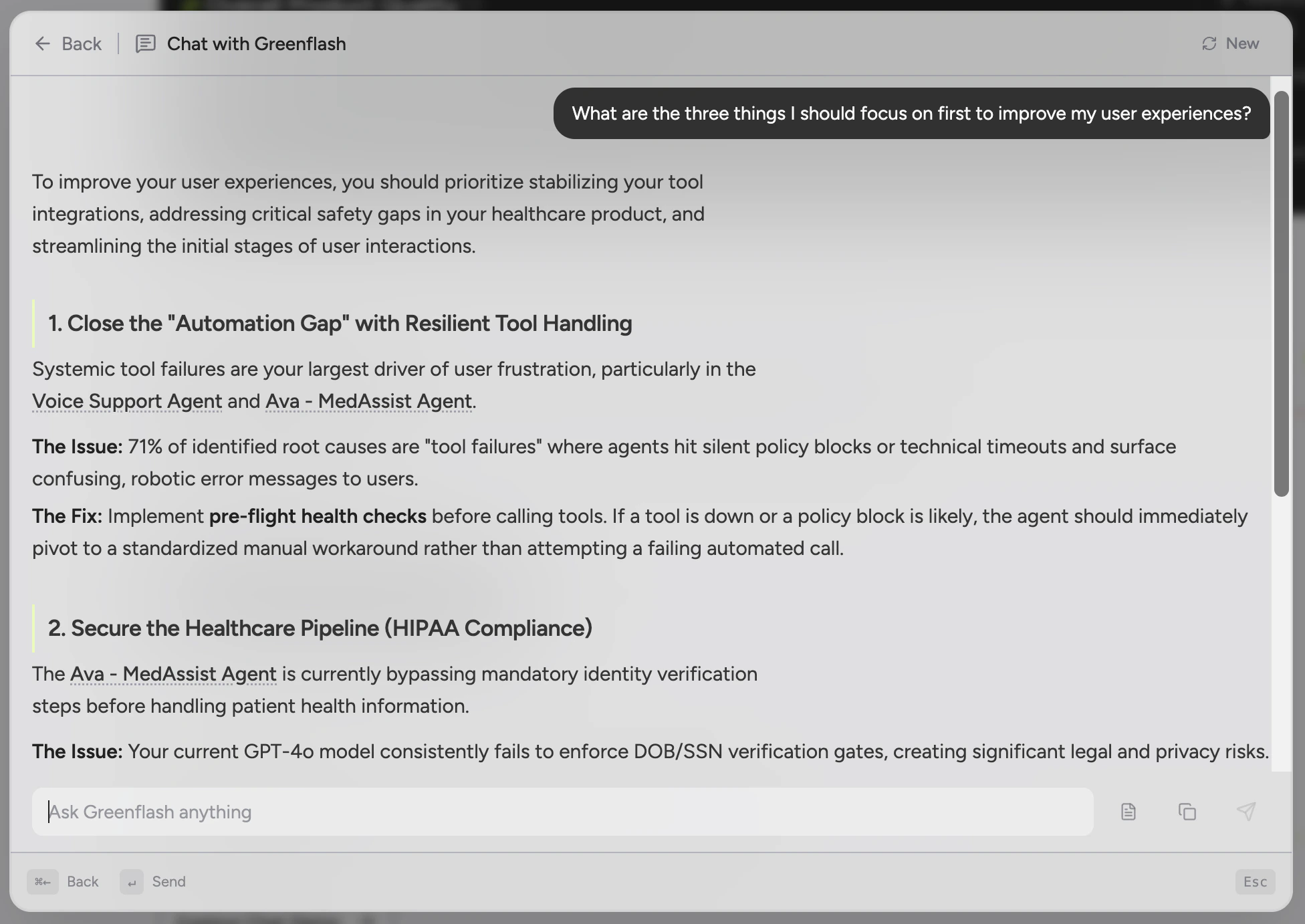
“Why is the checkout assistant failing?”The agent surfaces failing tools, error patterns, root causes, and affected users from real conversations. It goes beyond what the dashboard shows by correlating signals across dimensions — a tool failure that only affects one user segment, a prompt version that degrades quality for a specific topic, a model that hallucinates more during peak hours.
Conversations and users
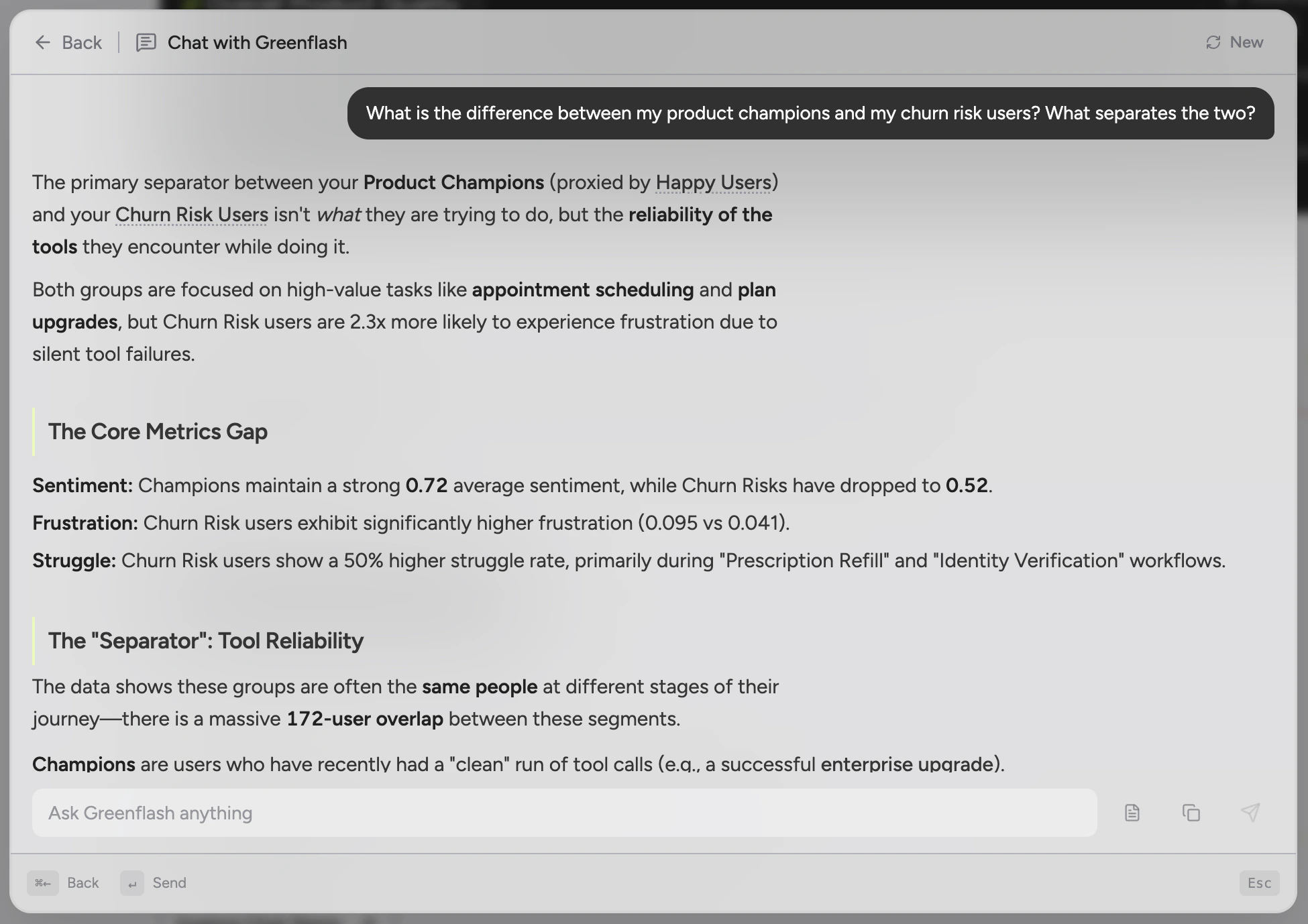
“Show me the most frustrated users this week”Rank users by frustration, struggle, sentiment, or commercial intent. Drill into any individual to see their full conversation history, segment membership, and quality scores. You can also search conversations with filters — by product, user, date range, or review status.
Prompts and models
“How is the support-v3 prompt performing compared to v2?”Compare prompt versions by quality index, hallucination rate, and user satisfaction. See model-level performance breakdowns with safety signals and usage patterns. The agent tells you what changed and whether it’s better or worse.
Inbox triage
“What’s flagged for review?”Pull your review inbox prioritized by severity — guardrail violations first, then safety issues, then low-quality interactions that need a human. Get the full context on any flagged item without leaving the conversation.
Reports
“Generate a report on my top products for the last 30 days”The agent kicks off a full insight report — an AI-composed narrative with evidence, recommendations, and charts. Reports generate asynchronously and are shareable with your team or stakeholders.
Cross-entity insights
“Are there any non-obvious correlations in my data?”This is where the agent goes beyond what dashboards can show. It scans across models, prompts, topics, time periods, and user segments to find patterns you wouldn’t think to look for — a topic that only causes frustration when handled by a specific model, a user segment whose quality dropped after a prompt change, a time-of-day effect on hallucination rates.
Temporal anomalies
“Has anything unusual happened in the last week?”Detects topic spikes, quality drops, and sentiment shifts compared to your baseline. Useful for catching regressions after a deployment or identifying emerging issues before they become trends.
How it works
When you ask a question, the agent:- Reads the page context — It knows what product, conversation, user, or inbox item you’re currently viewing and uses that to scope the query.
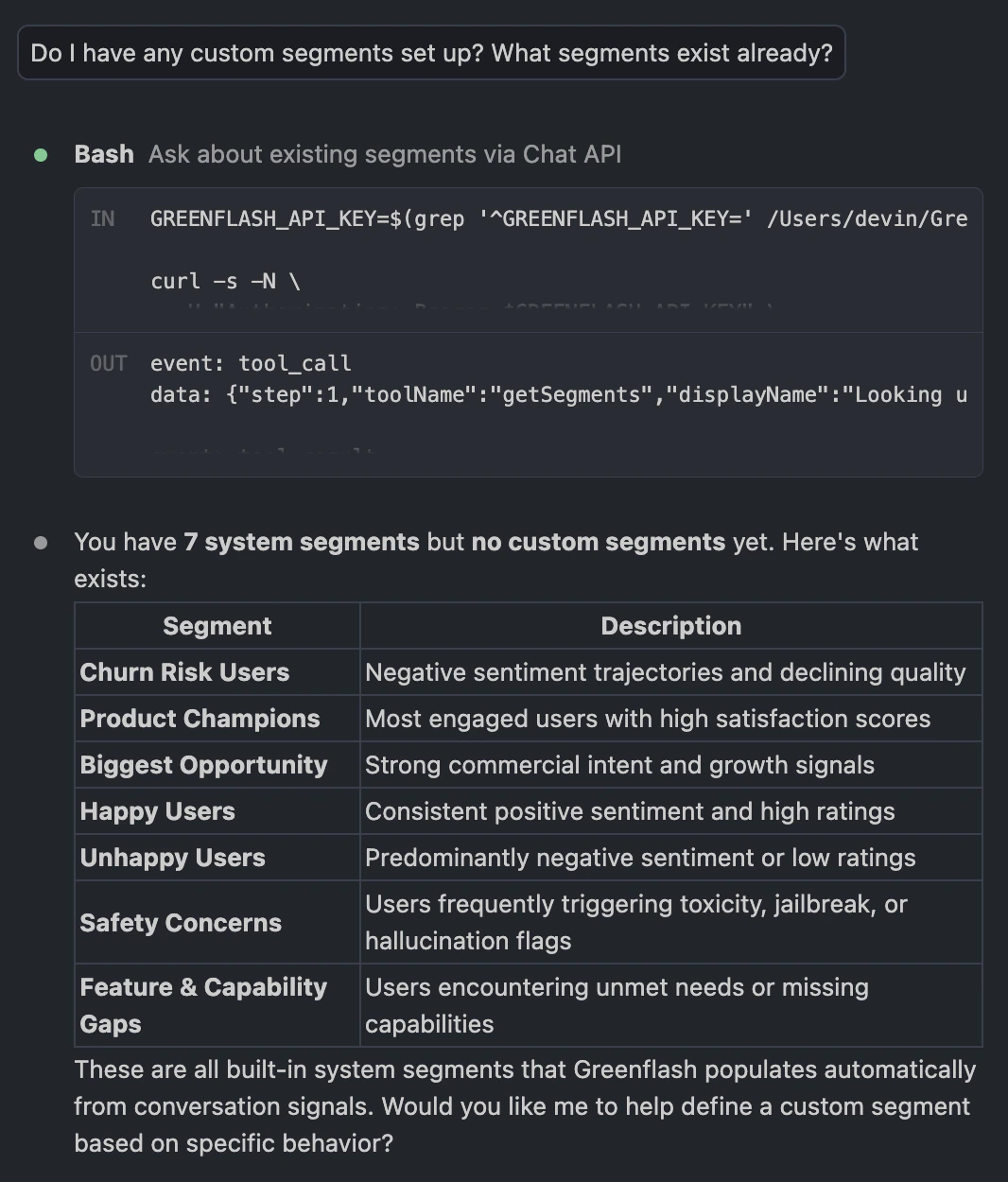
- Selects the right tools — The agent has access to over 20 specialized data-fetching tools covering products, conversations, users, segments, prompts, models, inbox items, anomalies, root causes, and more. It picks the ones relevant to your question.
- Calls tools in parallel — When multiple data points are needed, the agent fetches them simultaneously. You’ll see each tool call appear in real time as it executes.
- Synthesizes a response — Results from all tool calls are combined into a single, readable answer with specific numbers, evidence, and recommendations.
Contextual awareness
The agent adjusts its behavior based on where you are in the app:| Page | Default behavior |
|---|---|
| Product detail | Scopes questions to that product. “Summarize” gives a full health overview. |
| Interaction detail | Uses that conversation as context. “Summarize” explains what happened and why it matters. |
| Inbox item | Explains why the conversation was flagged, with root cause analysis. |
| Segment detail | Answers from the perspective of that user segment, grounded in their actual conversations. |
| Prompt detail | Analyzes prompt performance, strengths, weaknesses, and version comparisons. |
Tips for getting the most out of the agent
- Be specific when you can. “Why is PQI dropping for the onboarding bot?” will get a more targeted answer than “what’s wrong?”
- Follow up. The agent keeps context across turns, so “show me the worst conversations from that product” works naturally after a health overview.
- Use it from the right page. If you’re already on a product detail page, the agent knows the product. You don’t need to name it.
- Ask for comparisons. “Compare the support bot to the sales bot” or “how does v3 compare to v2?” — the agent handles side-by-side analysis well.
- Generate reports for stakeholders. When your VP asks “how’s the AI product doing?”, ask the agent to generate a report. It produces a shareable document, not a chat transcript.
Beyond the web app
The Greenflash Agent isn’t limited to the dashboard. You can access the same intelligence from other tools your team already uses:Slack App
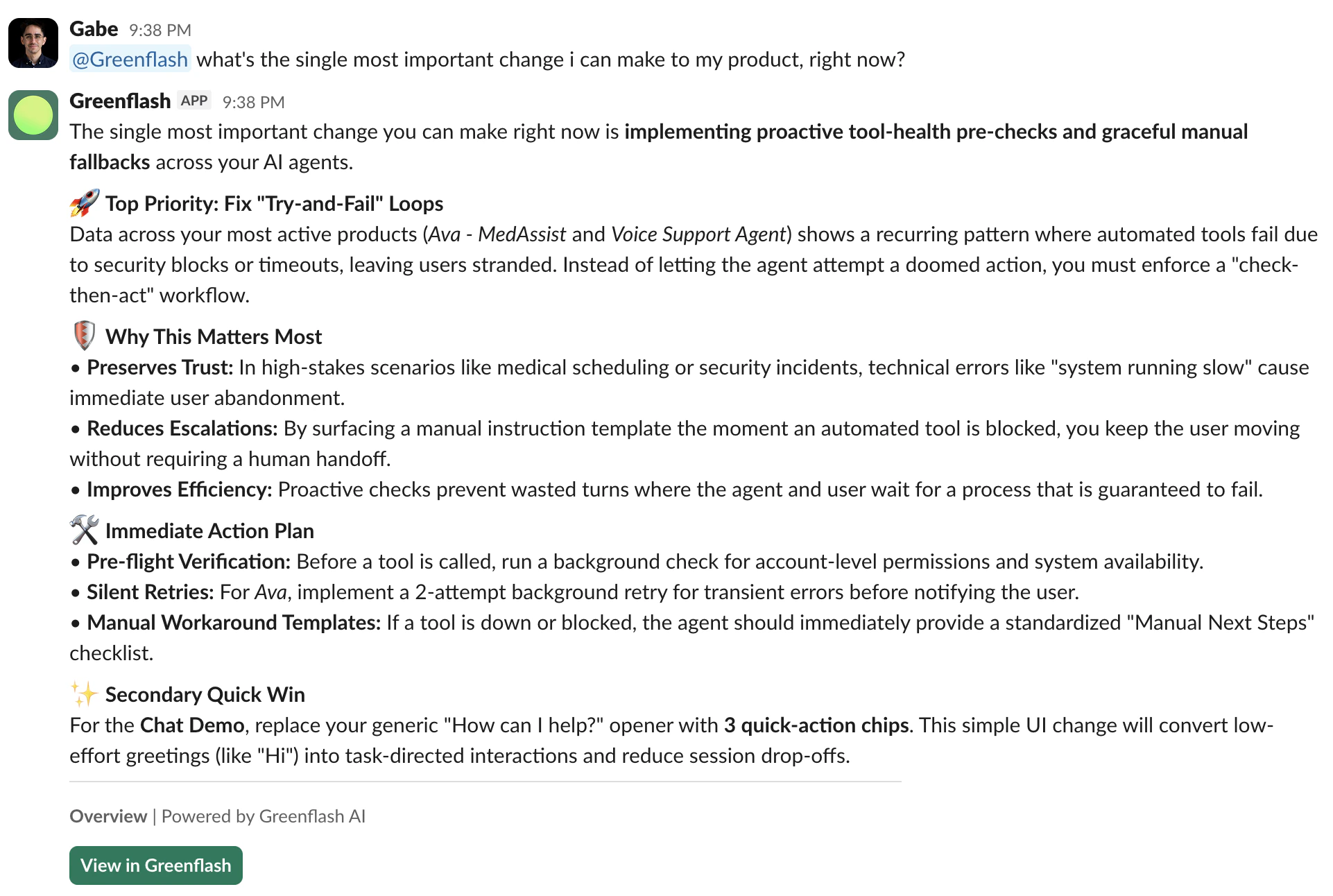
Get weekly product summaries, inbox notifications, and chat with the agent directly in Slack. Install it from your workspace settings.
Agent Skill
Bring Greenflash into Claude Code or any Skills-compatible coding agent. Diagnose issues, optimize prompts, and implement fixes without leaving the terminal.
The Greenflash Agent requires a Growth plan or higher. Upgrade here if needed.